Security
Kiali gives support to better understand how mTLS is used in Istio meshes. Find those helpers in the Mesh page, Traffic Graph, Overview Page, and specific validations.
Mesh indicator
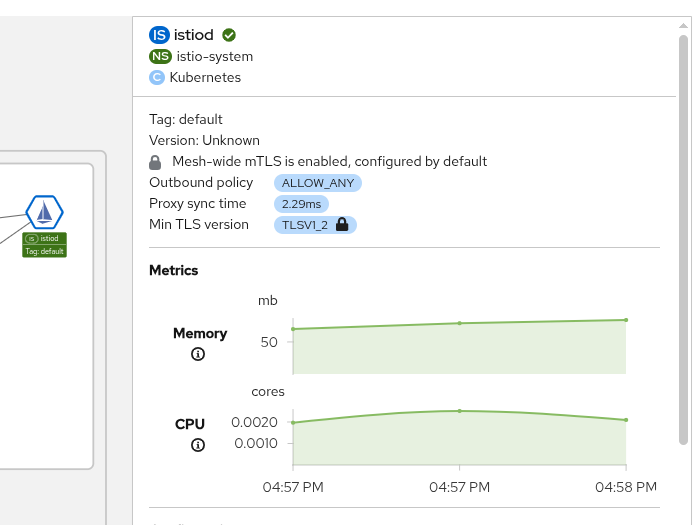
At the right panel of the Istio Control Plane from the Mesh page, Kiali shows a lock when the mesh has enabled mTLS for the whole service mesh. It means that all the communications in the mesh uses mTLS.
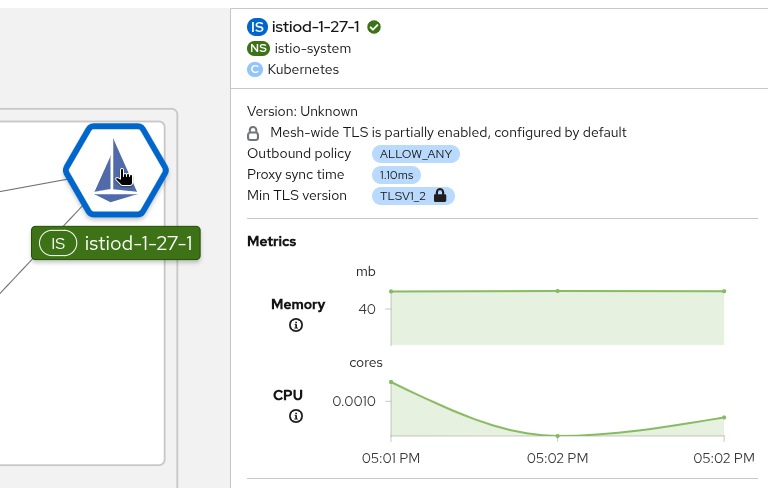
Kiali shows a hollow lock when either the mesh is configured in PERMISSIVE mode or there is a misconfiguration in the mesh-wide mTLS configuration.
Namespace locks
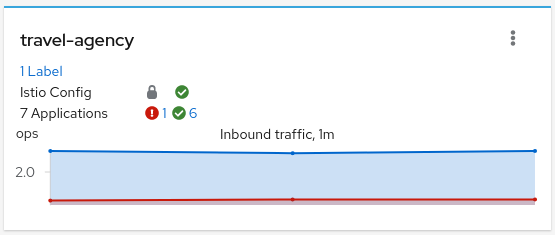
The Namespaces page shows all the available namespaces with aggregated data. Besides the health and validations, Kiali also shows the namespace-wide mTLS status. Similar to the Mesh page, it shows a lock when strict mTLS is enabled or an open lock when permissive. A red open lock is shown when mTLS is disabled. When the namespace doesn’t include an mTLS policy and it is inherited from the mesh, a down arrow is shown and the inherited mTLS is described in the badge.
Graph
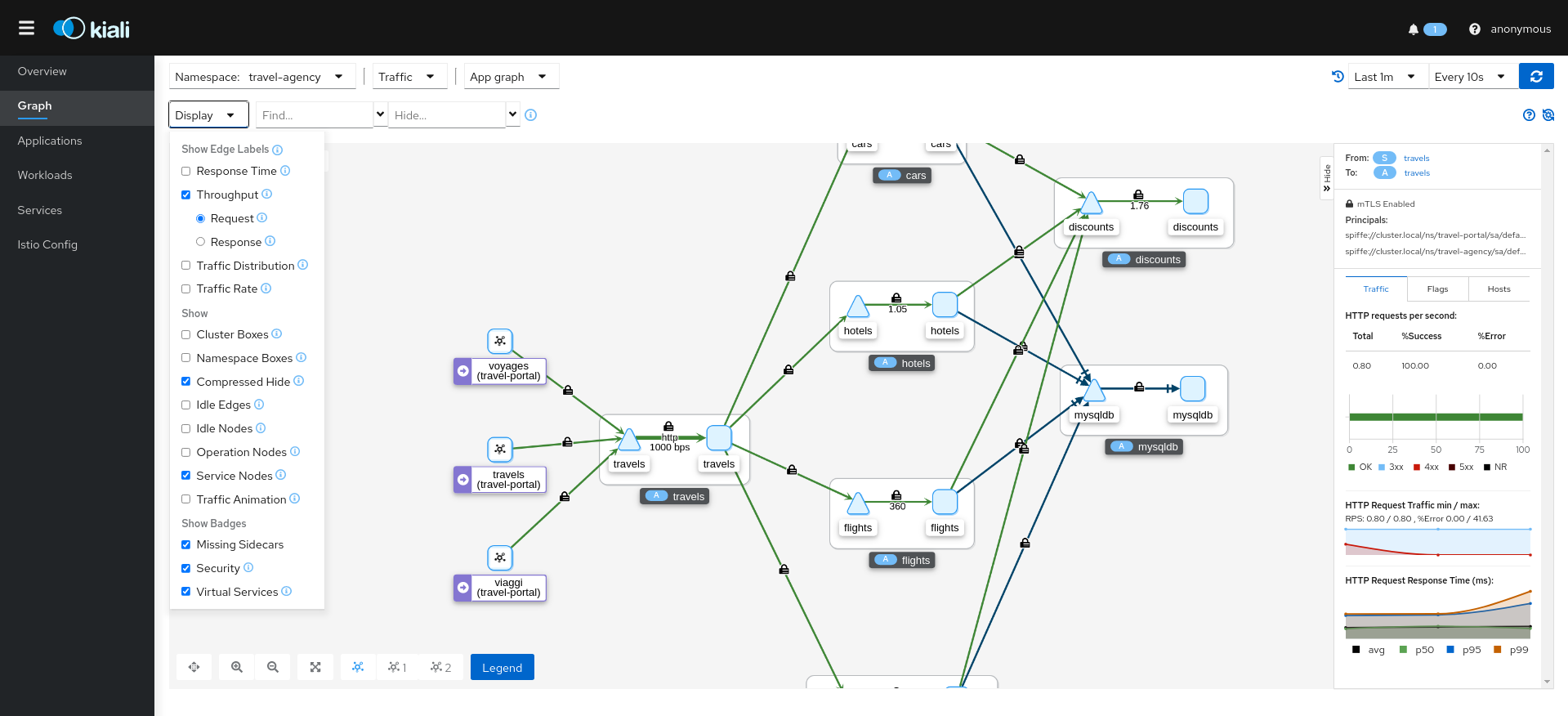
The mTLS method is used to establish communication between microservices. In the graph, Kiali has the option to show which edges are using mTLS and with what percentage during the selected period. When an edge shows a lock icon it means at least one request with mTLS enabled is present. In case there are both mTLS and non-mTLS requests, the side-panel will show the percentage of requests using mTLS.
Enable the option in the Display dropdown, select the security badge.
Validations
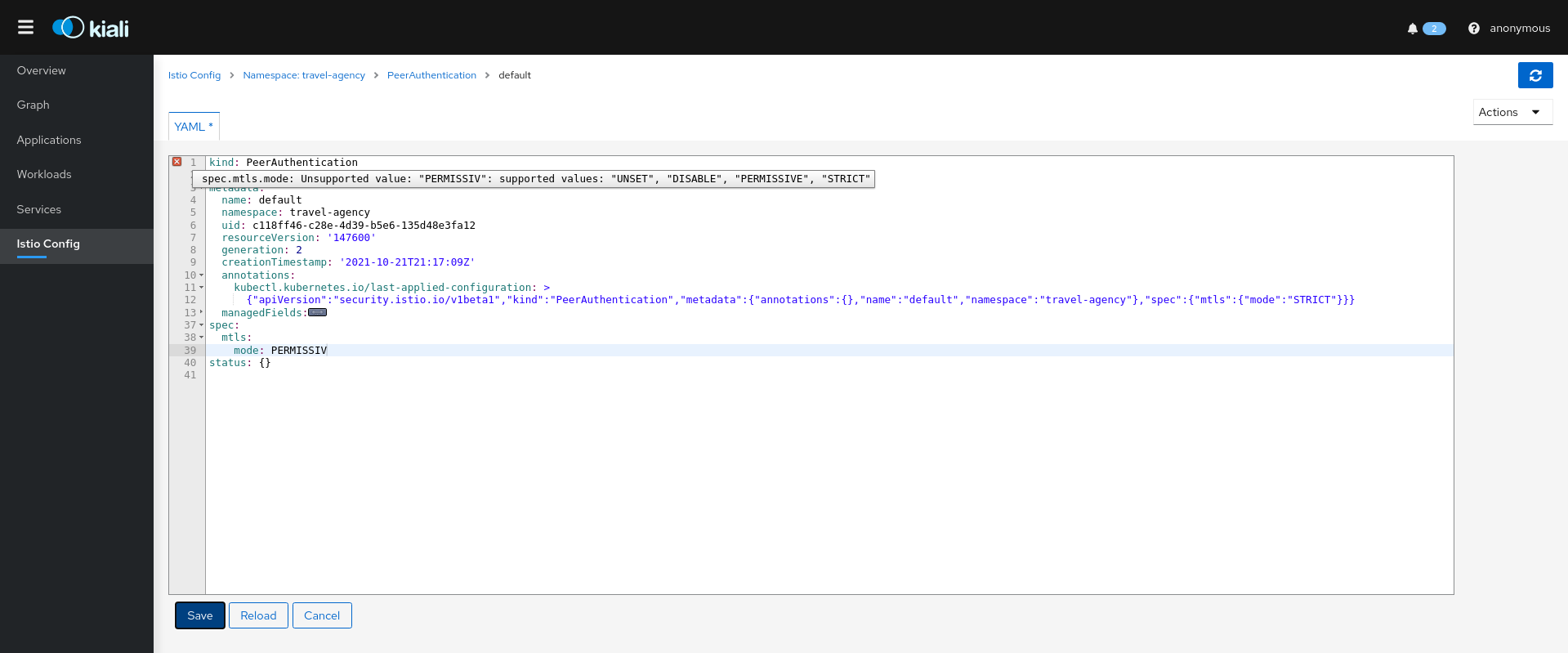
Kiali has different validations to help troubleshoot configurations related to mTLS such as DestinationRules and PeerAuthentications.