The OSSMConsole CR
OpenShift ServiceMesh Console (aka OSSMC) provides a Kiali integration with the OpenShift Console; in other words it provides Kiali functionality within the context of the OpenShift Console when a Kiali server is connected to the plugin. OSSMC is applicable only within OpenShift environments.
The main component of OSSMC is a plugin that gets installed inside the OpenShift Console. Prior to installing this plugin, you must install the Kiali Operator. A Kiali Server is optional for the initial plugin install — without it, OSSMC still provides Istios and Kialis pages for navigating multiple mesh instances from the console. See Navigating Multiple Meshes. Please see the Installation Guide for Kiali Operator installation details.
The Kiali Operator watches the OSSMConsole Custom Resource (OSSMConsole CR), a custom resource that contains the OSSMC deployment configuration. Creating, updating, or removing a OSSMConsole CR will trigger the Kiali Operator to install, update, or remove OSSMC.
Creating the OSSMConsole CR to Install the OSSMC Plugin
With the Kiali Operator installed, you can install the OSSMC plugin in one of two ways — either via the OpenShift Console or via the oc CLI. Both methods are described below. You choose the method you want to use.
A Kiali Server is not required for installation. If no Kiali instance is connected to the plugin, OSSMC provides Istios and Kialis for multi-mesh navigation in the console (see Navigating Multiple Meshes). To enable Kiali-powered observability pages, connect a Kiali instance after installation — see Connecting a Kiali instance to the console below.
When a Kiali server is connected to the plugin (a Kiali instance is connected or auto-discovered), you should specify the spec.version field of the OSSMConsole CR, and its value must be the same version as that of the Kiali Server (i.e. it must match the spec.version of the Kiali Server’s Kiali CR). Normally, you can just set spec.version to default which tells the Kiali Operator to install OSSMC whose version is the same as that of the operator itself. Alternatively, you may specify one of the
supported versions in the format vX.Y.
This version matching requirement does not apply when OSSMC is used without a connected Kiali server.
Installing via OpenShift Console
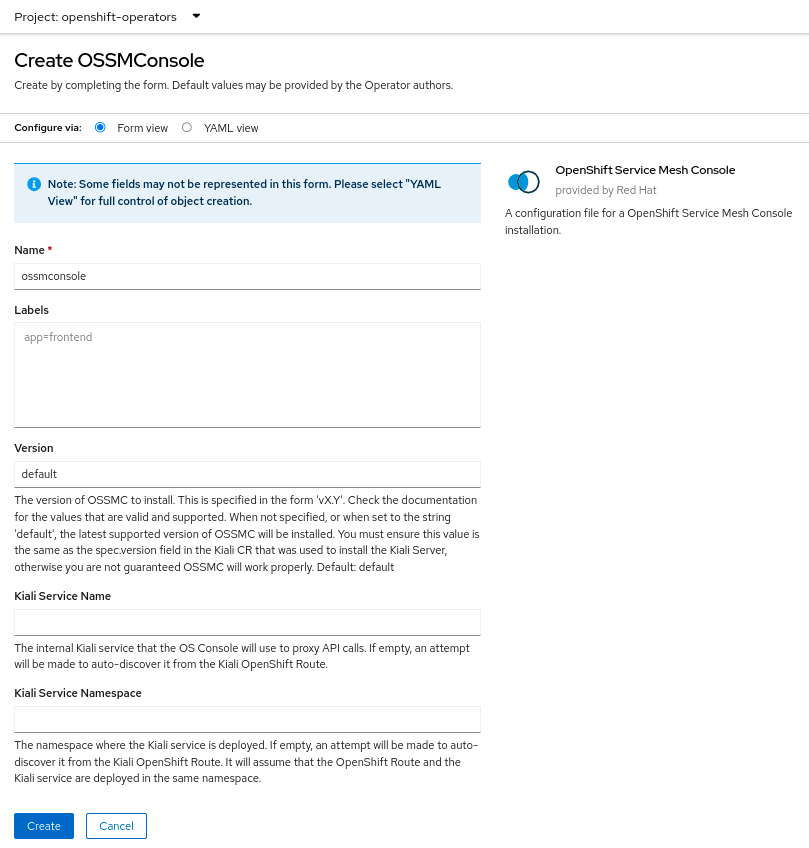
From the Kiali Operator details page in the OpenShift Console, create an instance of the “OpenShift Service Mesh Console” resource. Accept the defaults on the installation form and press “Create”.
Installing via “oc” CLI
To instruct the Kiali Operator to install the plugin, simply create a small OSSMConsole CR. A minimal CR can be created like this:
cat <<EOM | oc apply -f -
apiVersion: kiali.io/v1alpha1
kind: OSSMConsole
metadata:
  namespace: openshift-operators
  name: ossmconsole
spec:
  version: default
EOM
Note that the operator will deploy the plugin resources in the same namespace where you create this OSSMConsole CR - in this case openshift-operators but you can create the CR in any namespace.
For a complete list of configuration options available within the OSSMConsole CR, see the OSSMConsole CR Reference.
To confirm your OSSMConsole CR is valid, you can utilize the OSSMConsole CR validation tool.
Installation Status
After the plugin is installed, you can see the “OSSMConsole” resource that was created in the OpenShift Console UI. Within the operator details page in the OpenShift Console UI, select the OpenShift Service Mesh Console tab to view the resource that was created and its status. The CR status field will provide you with any error messages should the deployment of OSSMC fail.
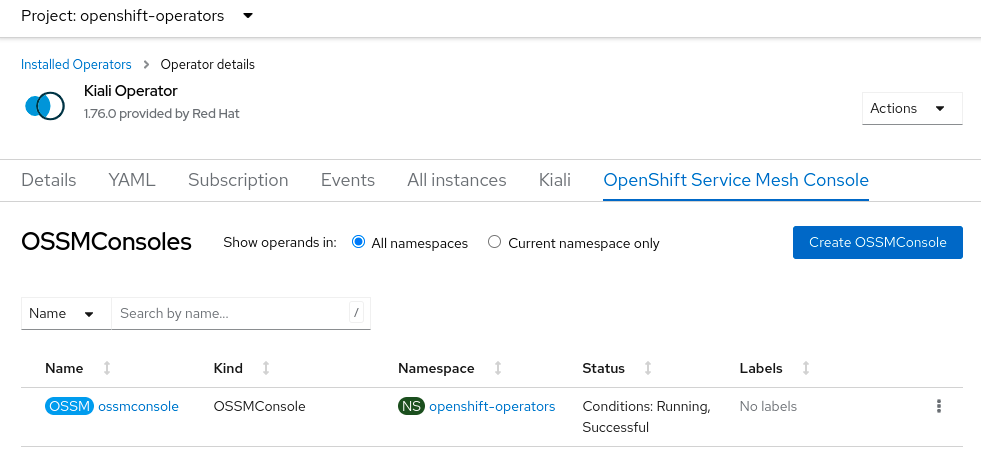
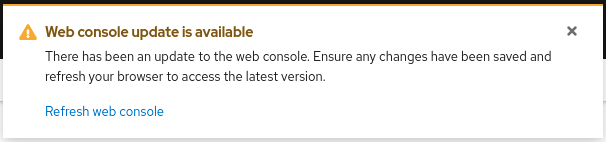
Once the operator has finished processing the OSSMConsole CR, you must then wait for the OpenShift Console to load and initialize the plugin. This may take a minute or two. You will know when the plugin is ready when the OpenShift Console pops up this message - when you see this message, refresh the browser window to reload the OpenShift Console:
Installing without a connected Kiali server
You can install OSSMC without connecting a Kiali server to the plugin. In that case, the Service Mesh menu provides Istios and Kialis so you can navigate multiple mesh instances from the OpenShift Console. See Navigating Multiple Meshes for what those pages provide.
A minimal OSSMConsole CR is sufficient when no Kiali server exists on the cluster and auto-discovery finds nothing to connect to:
apiVersion: kiali.io/v1alpha1
kind: OSSMConsole
metadata:
  name: ossmconsole
  namespace: openshift-operators
spec:
  version: default
To leave the plugin disconnected from Kiali explicitly (for example, when Kiali exists on the cluster but should not be used by OSSMC), set spec.kiali as follows:
spec:
  kiali:
    autoDiscover: false
    serviceName: ""
    serviceNamespace: ""
    servicePort: 0
Connecting a Kiali instance to the console
To enable OSSMC pages that require a Kiali server, connect a Kiali server to the plugin. You can do this in two ways:
- OpenShift Console UI — Open Service Mesh → Kialis, select a Kiali instance, and click Connect. This patches the OSSMConsole CR with the Kiali service name and namespace. See Navigating Multiple Meshes for details.
- OSSMConsole CR — Set
spec.kiali.serviceName,spec.kiali.serviceNamespace, andspec.kiali.servicePortto match the Kiali service. Alternatively, leave those fields empty and setspec.kiali.autoDiscovertotrueto let the operator discover Kiali from its OpenShift Route.
After connecting, refresh the OpenShift Console if pages that require Kiali do not appear immediately. The Kiali Operator must reconcile the OSSMConsole CR before OSSMC can connect. You may have to wait for a small amount of time and refresh the browser window to see those pages.
Disconnecting from a Kiali server
To disconnect OSSMC from a Kiali server (Istios and Kialis remain available for multi-mesh navigation):
- OpenShift Console UI — On the Kialis detail page for the connected instance, click Disconnect.
- OSSMConsole CR — Set
spec.kiali.autoDiscovertofalseand clearspec.kiali.serviceName,spec.kiali.serviceNamespace, and setspec.kiali.servicePortto0.
Uninstalling OSSMC
This section will describe how to uninstall the OpenShift Service Mesh Console plugin. You can uninstall the plugin in one of two ways - either via the OpenShift Console or via the “oc” CLI. Both methods are described in the sections below. You choose the method you want to use.
oc patch ossmconsoles <CR name> -n <CR namespace> -p '{"metadata":{"finalizers": []}}' --type=merge
Uninstalling via OpenShift Console
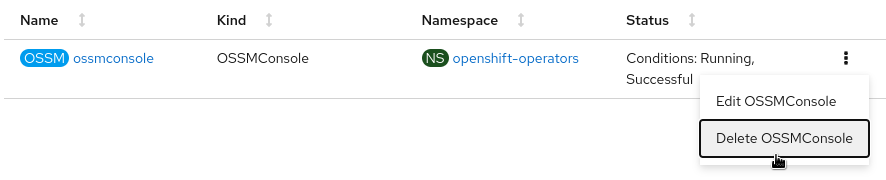
Remove the OSSMConsole CR by navigating to the operator details page in the OpenShift Console UI. From the operator details page, select the OpenShift Service Mesh Console tab and then select the Delete option in the kebab menu.
Uninstalling via “oc” CLI
Remove the OSSMConsole CR via oc delete ossmconsoles <CR name> -n <CR namespace>. To make sure any and all CRs are deleted from any and all namespaces, you can run this command:
for r in $(oc get ossmconsoles --ignore-not-found=true --all-namespaces -o custom-columns=NS:.metadata.namespace,N:.metadata.name --no-headers | sed 's/ */:/g'); do oc delete ossmconsoles -n $(echo $r|cut -d: -f1) $(echo $r|cut -d: -f2); done